
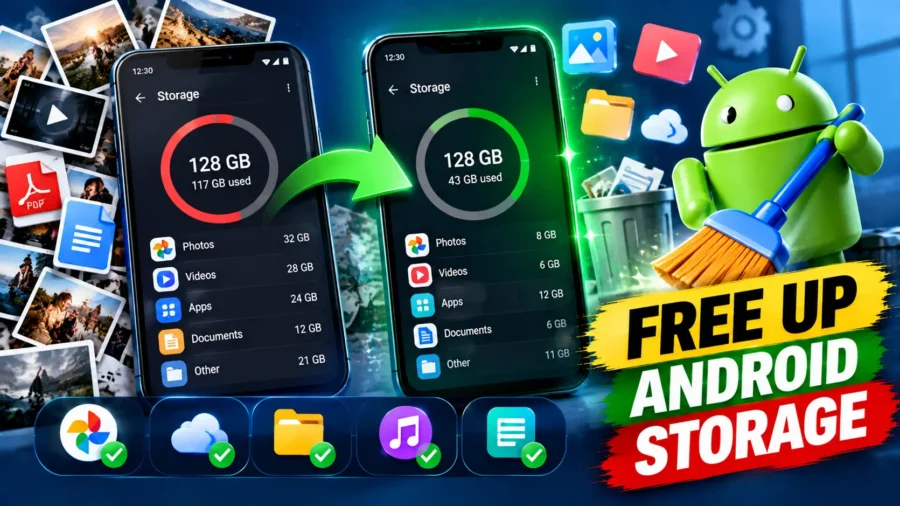

Free up storage on Android is one of those problems that tends to strike at the worst possible moment — right when you’re trying to take a photo at an event, install an important update, or download a document you urgently need. That dreaded “Storage almost full” notification can feel like an ultimatum: delete your memories or delete your apps. The good news is that in most cases, it doesn’t actually have to come down to that choice.
Clear internal storage on Android doesn’t have to mean sacrificing photos, videos, or documents you genuinely care about. Most phones are carrying a surprising amount of hidden clutter — cached data, duplicate files, leftover downloads, and forgotten app data — that can be safely cleaned out while leaving everything important untouched. Here’s a practical, step-by-step approach to reclaiming space the smart way.
How to Clear Internal Storage on Android: Start With What’s Taking Up Space
How to clear internal storage on Android effectively starts with understanding exactly where your storage is actually going, rather than guessing and deleting randomly. Open Settings, then Storage, and your phone will break down usage by category — typically apps, images, videos, audio, documents, and “Other” or “System” data. This breakdown immediately shows you where the biggest wins are likely to be hiding.
For most people, the largest chunks turn out to be videos, apps, and cached or “Other” data — not photos, which tend to take up less space than people assume. Starting your cleanup with the largest category gives you the fastest, most noticeable gains with the least effort.
Android Storage Breakdown: Where Space Usually Goes
| Category | Typical Space Impact | Easy to Reduce? |
|---|---|---|
| Videos | Often the largest single category | Yes — compress, move to cloud, or delete duplicates |
| Apps | Large, especially games and social apps | Yes — uninstall unused apps |
| Photos | Moderate | Yes — back up to cloud and remove local copies |
| Cached Data | Builds up silently over time | Yes — safe to clear |
| “Other” / System Data | Often unexpectedly large | Partially — some clearable, some essential |
Clean My Phone Storage Free: Using Built-In Tools First
Clean my phone storage free searches often lead people toward third-party cleaner apps, but most Android phones already include capable built-in tools that do the job without installing anything extra. Google’s Files app, available on most Android devices, offers a “Clean” section that identifies junk files, duplicate files, large unused files, and old downloads — all within a single, easy-to-use interface and without any cost.
Using built-in or official tools first also avoids a common trap: many third-party “cleaner” apps are riddled with ads, push questionable upgrade prompts, or request excessive permissions, and some can even make performance worse rather than better. Starting with Google’s own tools is both safer and, in most cases, equally effective.
How to Free Up Space on Android Without Deleting Anything
How to free up space on Android without deleting anything is entirely achievable by moving data instead of removing it. Cloud storage services like Google Photos and Google Drive let you back up your photos, videos, and documents online, after which you can safely remove the local copies from your phone while still keeping full access to them through the cloud whenever you need them.
Similarly, if your phone supports a microSD card, transferring photos, videos, and large files to the card frees up internal storage immediately without losing anything. Offloading large files like movies or offline-downloaded media to a computer or external drive is another straightforward option for anything you don’t need on hand every day.
Ways to Free Up Space Without Deleting Files
| Method | How It Works | Best For |
|---|---|---|
| Cloud Backup (Google Photos/Drive) | Upload files online, then remove local copies | Photos, videos, documents |
| microSD Card Transfer | Move files to external card | Phones with SD card slots |
| Computer Transfer | Copy files via USB to a PC or laptop | Large videos, old media |
| Offload Unused Apps | Remove app but keep its data | Apps you rarely use |
How to Clear Phone Storage Without Deleting Anything: Clearing Cache the Safe Way
How to clear phone storage without deleting anything often comes down to clearing app cache, which is temporary data apps store to load faster but that can safely be removed without affecting your actual content or settings. Go to Settings, then Apps, select a specific app, tap Storage, and choose “Clear Cache” — this removes temporary files only, leaving your login, saved data, and personal content completely intact.
Be careful to distinguish between “Clear Cache” and “Clear Data” here, since they sound similar but do very different things. Clearing cache is harmless and reversible, since the app simply rebuilds it over time. Clearing data, on the other hand, resets the app entirely — logging you out and removing locally saved information — so it should be used only when you genuinely want to start fresh with that app.
How to Clear “Other” Storage on Android: Tackling the Mystery Category
How to clear Other storage on Android is a surprisingly common question, since the “Other” category is often the most confusing and least transparent part of your storage breakdown. This category generally includes cached app data, leftover system files, downloaded documents, app-specific files, and temporary data that doesn’t fit neatly into photos, videos, or music categories.
The most effective way to reduce “Other” storage is to clear the cache of your largest apps, delete old downloads you no longer need through the Files app, and uninstall apps you haven’t used in months. Browser caches, messaging apps like WhatsApp or Telegram that store received media locally, and social media apps tend to be the biggest contributors to this category over time.
Common Contributors to “Other” Storage
| Source | What It Contains | How to Reduce |
|---|---|---|
| App Cache | Temporary files stored by apps | Clear cache per app |
| Downloaded Files | PDFs, APKs, documents from the browser | Delete via Files app |
| Messaging App Media | Photos, videos, and voice notes from chats | Clear within app settings |
| Browser Data | Cached pages, cookies, saved files | Clear in browser settings |
| Leftover System Files | Residual data from updates or uninstalled apps | Usually minimal, restart sometimes helps |
How to Free Up Storage Space on Android Phone Samsung: Brand-Specific Tips
How to free up storage space on Android phone Samsung devices benefits from a built-in tool unique to Samsung phones called Device Care. Found under Settings, Device Care, then Storage, this feature scans your phone for unnecessary files, such as cached data, residual files, and unused apps, and lets you clear them with a single tap.
Samsung phones also include Samsung Cloud and tight integration with OneDrive for backing up photos and files, which makes offloading content to the cloud especially convenient for Samsung users who want to free up local space without losing access to anything.
What Should I Delete When My Phone Storage Is Full: Prioritising Safely
What should I delete when my phone storage is full is best answered by working from lowest-risk to highest-risk items. Start with cached data and temporary files, which are entirely safe to remove. Next, delete duplicate photos and screenshots you no longer need, old downloaded files like outdated PDFs or installers, and apps you haven’t opened in months.
Only after clearing those lower-risk items should you consider removing larger personal files like old videos, and even then, backing them up to the cloud or a computer first is far safer than permanent deletion. This approach lets you reclaim meaningful space while keeping everything genuinely important fully intact.
Deletion Priority: What to Remove First
| Priority | Item | Risk of Losing Something Important |
|---|---|---|
| 1 (Safest) | App cache and temporary files | None |
| 2 | Duplicate photos and screenshots | Very low |
| 3 | Old downloads (PDFs, installers) | Low |
| 4 | Unused apps | Low (can be reinstalled) |
| 5 | Large videos (after backup) | Only if not backed up first |
Phone Storage Full for No Reason Android: Hidden Culprits to Check
Phone storage full for no reason Android users often report is rarely truly “no reason” — it’s usually a sign that something invisible is quietly consuming space. Common hidden culprits include apps with ballooning cache, such as social media or streaming apps that store large amounts of temporary data, messaging apps silently auto-downloading every photo and video sent to you in group chats, and system update files that stay behind after installation.
Checking your storage breakdown for unexpectedly large categories, then investigating the specific apps responsible, usually reveals the answer quickly. Disabling auto-download for media in messaging apps is also one of the most effective long-term fixes for this recurring problem.
Frequently Asked Questions About Freeing Up Android Storage
1. How can I free up storage on Android without deleting anything important?
Back up photos and videos to cloud storage, clear app cache, move files to a microSD card or computer, and uninstall rarely used apps, all of which free up space without losing important content.
2. Is it safe to clear app cache on Android?
Yes, clearing cache is completely safe and only removes temporary files; your login details, settings, and personal data remain untouched.
3. What’s the difference between clearing cache and clearing data?
Clearing cache removes temporary files only, while clearing data resets the app completely, logging you out and deleting locally saved information.
4. What is “Other” storage on Android?
“Other” storage includes cached data, downloaded documents, app-specific files, and miscellaneous system data that don’t fall into categories like photos, videos, or music.
5. How do I free up storage on a Samsung phone?
Use Samsung’s built-in Device Care tool under Settings > Device Care > Storage to scan for and clear unnecessary files with a few taps.
6. Do I need a third-party cleaner app to free up storage?
No, most Android phones include built-in tools, and Google’s Files app offers a free Clean feature that handles most cleanup tasks safely.
7. Why is my Android phone storage full for no obvious reason?
Common hidden causes include bloated app cache, messaging apps auto-downloading media, and leftover system update files.
8. What should I delete first when my phone storage is full?
Start with cache and temporary files, followed by duplicate photos, old downloads, and unused apps, before touching any personal files.
9. Can I move files to a microSD card to save internal storage?
Yes, if your phone has a microSD card slot, you can transfer photos, videos, and other large files to the card to free up internal storage.
10. How often should I clean my Android phone’s storage?
A quick review every month or two is generally enough to prevent storage from filling up unexpectedly and to keep your phone running smoothly.