
What is two-factor authentication is a question that usually gets asked at the worst possible moment: right after an account has been hacked, or right when a login screen asks for a six-digit code you don’t know how to find. Most of us have clicked “Not now” on a security prompt at least once, because a password already feels like enough. It isn’t. Passwords leak, get reused and get guessed, and a stolen one is often all an attacker needs.
Two-factor authentication, usually shortened to 2FA, adds a second proof of identity on top of your password. That small extra step is the difference between a stranger who has your password and a stranger who actually gets in. This guide explains what it is, why it’s important, which methods are strongest, how to find your 2FA code, and how it works on Instagram, Facebook, WhatsApp, GitHub, banking and your computer.
What Is Two-Factor Authentication? The Simple Definition
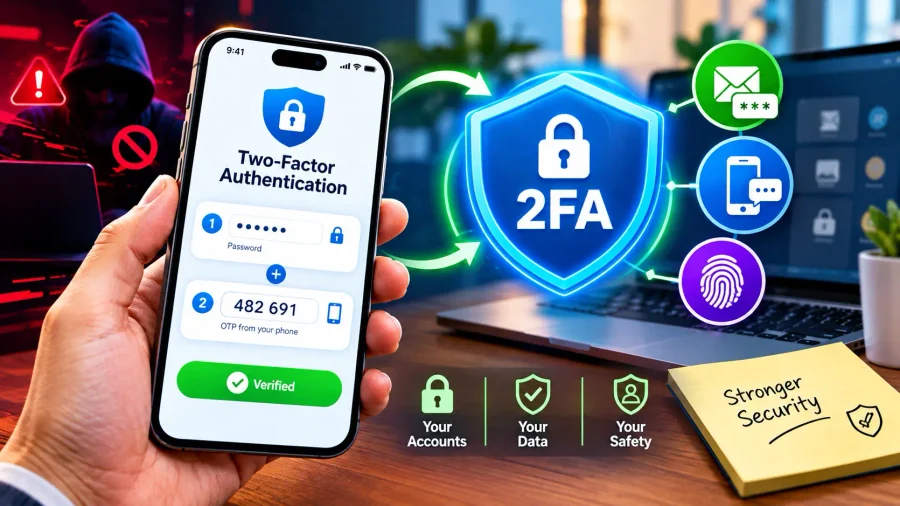
What is two-factor authentication in plain words: it’s a login method that asks for two different kinds of proof before letting you in, instead of one. The first is normally your password. The second is something only you should have, such as a code sent to your phone, a prompt in an app, or a physical security key.
The two proofs must come from different categories, and that’s the whole point. Typing a password and then a security question is not true 2FA, because both are things you know. Real 2FA mixes categories, so an attacker who steals one still can’t get through with the other.
The Three Types of Authentication Factors
| Factor Type | Meaning | Examples |
|---|---|---|
| Something you know | Information in your head | Password, PIN |
| Something you have | An object or device you hold | Phone, security key, authenticator app |
| Something you are | A body trait | Fingerprint, face scan |
Why Is Two-Factor Authentication Important?
Two-factor authentication matters because passwords alone have too many ways to fail. People reuse the same password across sites, so one data breach can unlock many accounts. Phishing pages trick people into typing passwords into fake login forms. Malware can quietly record what you type. In every one of these cases, the attacker walks away with your password but not with your phone.
With 2FA switched on, a stolen password stops being enough. The attacker also needs the second factor, which is far harder to steal at scale. It doesn’t make an account unhackable, but it raises the cost and effort so much that most casual attacks simply fail. For email, banking and social accounts that can be used to reset other passwords, that extra barrier is worth the thirty seconds it takes to set up.
Password Only vs Password Plus 2FA
| Situation | Password Only | Password Plus 2FA |
|---|---|---|
| Password leaked in a data breach | Account at high risk | Attacker still blocked by second step |
| You fall for a phishing page | Account likely compromised | Often still protected, depending on method |
| Someone guesses a weak password | Account compromised | Second factor still required |
| Effort added to your login | None | A few extra seconds |
How Two-Factor Authentication Works
How two-factor authentication works is easier to see as a sequence than as a definition. You enter your username and password as usual. The service checks them, and if they’re correct, it doesn’t let you in yet. Instead, it asks for a second proof, which you provide through a code, a tap or a touch. Only after both pass is the session opened.
Step-by-Step: A Typical 2FA Login
| Step | What Happens |
|---|---|
| 1 | You enter your username and password |
| 2 | The service verifies them |
| 3 | It requests a second factor (code, prompt, key or biometric) |
| 4 | You provide the second factor from your phone or device |
| 5 | The service confirms both and logs you in |
Types of Two-Factor Authentication: Which Method Is Strongest?
Two-factor authentication comes in several forms, and they are not equally secure. Text message codes are the most familiar and the easiest to set up, but they can be intercepted in certain attacks, such as a SIM swap, where someone convinces a mobile carrier to move your number to their SIM. Authenticator apps generate codes on your device without needing the mobile network, which makes them stronger. Hardware security keys and passkeys are the strongest, because they’re designed to resist phishing.
2FA Methods Compared
| Method | How It Works | Convenience | Security Level |
|---|---|---|---|
| SMS code | Code sent by text message | Very easy | Basic; exposed to SIM swap and interception |
| Authenticator app | App generates a code that refreshes every 30 seconds or so | Easy | Strong |
| Push approval | Tap Approve on a prompt | Very easy | Good, but watch for approval fatigue |
| Security key or passkey | Physical key or device-based credential | Moderate | Strongest; resists phishing |
| Backup codes | One-time codes you save in advance | Manual | Good as an emergency fallback |
| Biometrics | Fingerprint or face scan, usually on the device | Very easy | Strong when paired with a device-bound factor |
How Do I Get My 2 Factor Authentication Code?
How do I get my 2 factor authentication code depends entirely on which method you chose when you set up 2FA. If you picked text messages, the code arrives as an SMS to your registered number within seconds of logging in. If you picked an authenticator app, open the app and read the six-digit number shown for that account, noting that it refreshes every thirty seconds or so, so type it quickly.
Other routes exist too. Some services email the code, some send a push notification asking you to approve, and some rely on a physical security key you tap or plug in. If you’ve lost your phone or can’t receive codes, use the backup codes you were shown at setup, which is exactly why saving them somewhere safe matters. One rule applies to all methods: never share a 2FA code with anyone, including people claiming to be support staff. Real services never ask for it.
Where Your 2FA Code Comes From
| If You Chose | Where to Find the Code |
|---|---|
| Text message | In your SMS inbox on the registered number |
| Authenticator app | Open the app and read the current code for that account |
| In the inbox of your registered email address | |
| Push approval | A notification on your phone asking you to approve |
| Security key | Tap or insert the key when prompted |
| Backup codes | From the list you saved when you set up 2FA |
What Is Two-Factor Authentication in Computer?
What is two-factor authentication in computer use mostly means protecting the accounts you reach through your computer: email, cloud storage, shopping, social media and work systems. When you log in on a laptop and your account asks for a code from your phone, that’s 2FA at work. In offices, it often goes further, with a company login requiring a password plus an authenticator prompt or hardware key before you can open work applications or connect to a company network.
Some computers also add device-level protection, such as a PIN or biometric sign-in on the device itself. That helps, but it’s separate from the 2FA on your online accounts, and the strongest setup uses both.
What Is Two Factor Authentication App?
What is two factor authentication app has a short answer: it’s an app on your phone that generates the temporary codes used in 2FA. When you enable the authenticator option for a service, you scan a QR code once, and from then on the app produces a fresh code every thirty seconds or so. Because the codes are made on your device, they don’t travel over the mobile network, which is why this method resists interception better than SMS.
Well-known options include Google Authenticator, Microsoft Authenticator and the authenticator features built into several password managers. Whichever you choose, check how the app handles backup and device transfer, because switching phones without a plan is one of the most common ways people lock themselves out.
Authenticator App Tips
| Tip | Why It Matters |
|---|---|
| Save backup codes when you set up | Lets you recover if you lose the phone |
| Check how to move the app to a new phone | Prevents lockouts during an upgrade |
| Use a screen lock on your phone | Protects the codes if the phone is stolen |
| Don’t screenshot the setup QR code carelessly | Anyone with it can generate your codes |
What Is Two-Factor Authentication Instagram?
What is two-factor authentication Instagram refers to the extra login check Instagram offers through its security settings. When it’s on, logging in from an unrecognised device asks for a second step after your password. Instagram has offered options such as an authentication app, text message codes and, in some regions, WhatsApp-based codes, along with recovery codes you can save.
To turn it on, look in the app under Settings, then Accounts Center, then Password and security, then Two-factor authentication. Menu names change from time to time, so follow the on-screen path if yours looks different. Choosing an authentication app is generally safer than SMS, and saving your recovery codes gives you a way back in if you change your number.
Two-Factor Authentication Facebook
Two-factor authentication Facebook works much the same way and is found in the same Accounts Center area under Password and security. Facebook typically offers a security key, an authentication app or text message codes, and you can choose which one to use for logins from unrecognised devices.
Because a Facebook account is often tied to Messenger, Instagram and third-party logins, a takeover causes damage well beyond one app. Turning on 2FA, saving the recovery codes and reviewing your logged-in devices from time to time are simple habits that cover most of the risk.
What Is Two Factor Authentication in WhatsApp?
What is two factor authentication in WhatsApp has a slightly different answer, because WhatsApp calls its version two-step verification. When you set it up, you create a six-digit PIN, and WhatsApp asks for that PIN whenever you try to register your number on a new device, in addition to the SMS code sent to your number. It also asks for it from time to time while you use the app.
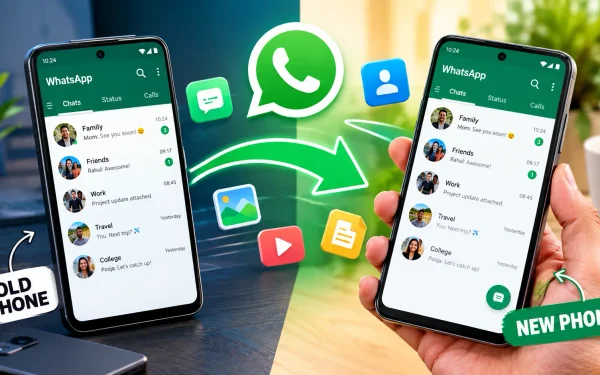
You’ll find it under Settings, then Account, then Two-step verification. Add an email address when prompted, because it lets you reset a forgotten PIN. Without a recovery email, a forgotten PIN can lock you out of re-registering for several days. This also connects to moving chats between phones: the PIN will be required when you set up WhatsApp on your new phone, so remember it before you switch.
What Is Two-Factor Authentication in Banking?
What is two-factor authentication in banking is something most people already use without calling it that. Logging into net banking with a password and then entering a one-time password, approving a prompt in the bank’s app, or confirming with a fingerprint is 2FA in action. Card payments and digital transfers often add similar steps, such as a one-time code or a PIN approval.
Regulators in many countries, including India, push banks to require more than a single password for digital payments, precisely because money is on the line. Treat bank codes with extra care: never read an OTP out to a caller, even one claiming to be from your bank, since real banks don’t ask for it.
2FA in Banking: Common Forms
| Form | Example |
|---|---|
| One-time password | Code sent by SMS or generated in the bank app |
| App approval | Tap Approve inside the bank’s mobile app |
| Biometric check | Fingerprint or face unlock for the app |
| PIN plus device | Transaction PIN on a registered device |
What Is Two Factor Authentication in GitHub?
What is two factor authentication in GitHub matters more than usual because a compromised developer account can put code, secrets and other people’s projects at risk. GitHub has required users who contribute code on its main site to enable at least one form of 2FA, and it supports authenticator apps, security keys, passkeys, its mobile app and, in some cases, text messages.
You can set it up from Settings, then Password and authentication, then Two-factor authentication. GitHub also gives you recovery codes, which you should store somewhere safe and offline. For developers, a security key or passkey is a strong choice, since it’s built to resist phishing pages that imitate the login form.
Where to Enable 2FA on Popular Platforms
| Platform | Typical Path | Notes |
|---|---|---|
| Settings > Accounts Center > Password and security | App, SMS or recovery codes | |
| Settings > Accounts Center > Password and security | Security key, app or SMS | |
| Settings > Account > Two-step verification | Called two-step verification; uses a 6-digit PIN | |
| GitHub | Settings > Password and authentication | App, key, passkey or mobile app; save recovery codes |
| Bank apps | Security or profile settings | OTP, app approval or biometrics |
Menu names change between app versions, so follow the labels you see on your own screen.
Is 2FA Unbreakable? Where It Can Still Fail
Two-factor authentication greatly improves your security, but it isn’t magic. Attackers have adapted, and knowing their tricks helps you avoid them. SIM swapping can redirect SMS codes. Phishing sites can trick you into typing a code on a fake page, which the attacker immediately uses. And “approval fatigue” attacks flood you with login prompts hoping you’ll tap Approve just to make them stop.
Common 2FA Attacks and How to Counter Them
| Attack | How It Works | Defence |
|---|---|---|
| SIM swap | Attacker moves your number to their SIM | Prefer an authenticator app or security key over SMS |
| Phishing for codes | Fake page captures your code | Check the web address; use passkeys or security keys |
| Approval fatigue | Repeated push prompts until you tap Approve | Deny unexpected prompts and change your password |
| Code-sharing scam | Caller asks you to read out your OTP | Never share codes with anyone |
| Lost phone | Phone with codes is stolen or broken | Keep backup codes and a screen lock |
Best Practices Checklist for Using 2FA
What is two-factor authentication worth if it’s set up badly? Not much. A few habits make the difference between 2FA that protects you and 2FA that quietly fails when you need it.
2FA Setup Checklist
| Action | Why |
|---|---|
| Turn on 2FA for email first | Email resets most other accounts |
| Prefer an authenticator app or security key over SMS | Stronger against interception |
| Save backup codes offline | Your way back in if you lose the phone |
| Update your phone number or recovery email | Prevents recovery dead ends |
| Never share codes | Legitimate services won’t ask |
| Review logged-in devices occasionally | Spot sessions you don’t recognise |
Frequently Asked Questions About Two-Factor Authentication
1. What is two-factor authentication?
It’s a login method that asks for two different kinds of proof, usually your password plus a code, prompt or key, so that a stolen password alone can’t unlock your account.
2. Why is two-factor authentication important?
Passwords can be leaked, guessed or phished. A second factor means an attacker with your password still can’t get in without also having your phone or key.
3. How do I get my 2 factor authentication code?
It depends on the method you chose: an SMS to your registered number, a six-digit code in your authenticator app, an email, a push prompt, or a backup code saved earlier. Never share the code with anyone.
4. What is two-factor authentication on Instagram?
It’s an extra login step Instagram offers through an authentication app, text message or, in some regions, WhatsApp codes. You can enable it under Settings, then Accounts Center, then Password and security.
5. What is two-factor authentication in a computer?
It means protecting your online accounts and work logins, accessed from a computer, with a password plus a second factor such as an app code, key or biometric prompt.
6. What is two factor authentication in WhatsApp?
WhatsApp calls it two-step verification. You set a six-digit PIN that’s required when you register your number on a new device, and you should add a recovery email in case you forget it.
7. How do I turn on two-factor authentication on Facebook?
Go to Settings, then Accounts Center, then Password and security, then Two-factor authentication, and choose a security key, authentication app or text message codes.
8. What is a two factor authentication app?
It’s an app such as Google Authenticator or Microsoft Authenticator that generates a fresh code every thirty seconds or so for the accounts you link to it, without needing the mobile network.
9. What is two-factor authentication in banking?
It’s the combination of your password or PIN with a second step, such as a one-time password, an app approval or a fingerprint, used to confirm logins and payments.
10. What is two factor authentication in GitHub?
It’s an extra login step that GitHub requires for users who contribute code, using an authenticator app, security key, passkey, the GitHub mobile app or in some cases SMS, along with recovery codes.
11. Is SMS 2FA safe enough?
It’s better than a password alone, but weaker than an authenticator app or security key because text messages can be intercepted or redirected through a SIM swap.
12. What if I lose my phone and can’t get my 2FA code?
Use the backup or recovery codes you saved when you set up 2FA, or follow the service’s account recovery process. This is why saving backup codes in a safe place matters.