
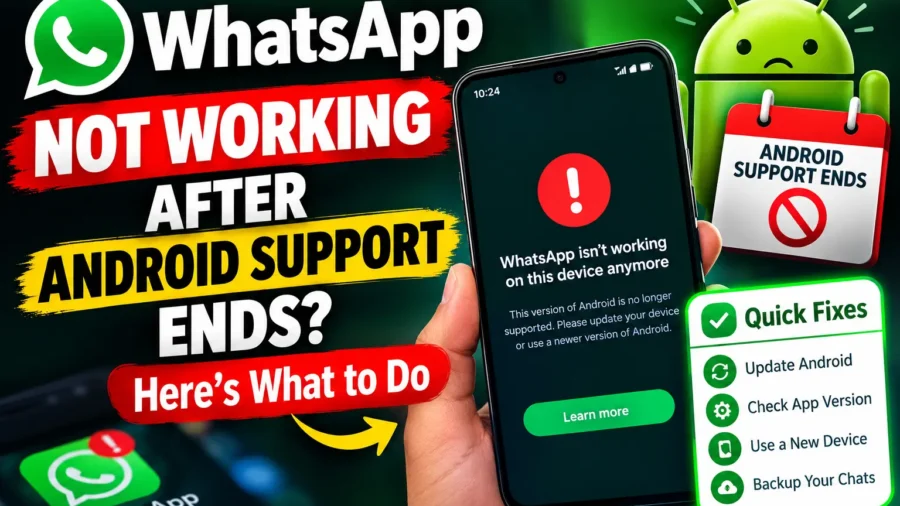

WhatsApp not working suddenly after months, or even years, of trouble-free use can feel confusing, especially if nothing about your phone seems to have changed on your end. If you’re on an older Android device, though, there’s a very specific reason this might be happening right now, and it has nothing to do with a bug or a temporary outage — it’s a deliberate change WhatsApp made to its minimum system requirements.
WhatsApp not working today for a specific group of users traces directly back to September 8, 2026, when WhatsApp officially stopped supporting devices running Android 5.0 and Android 5.1. If your phone falls into that category, the app isn’t malfunctioning — it’s simply no longer compatible, and no amount of restarting, clearing cache, or reinstalling will bring it back on that specific device. Here’s how to tell the difference, and what to actually do about it either way.
If WhatsApp has stopped working on your phone after the latest Android support change, the first step is to check whether your device is among the older Android phones affected by the update. You can also check our detailed guide on which older Android phones are affected by WhatsApp’s support change and what users need to know.
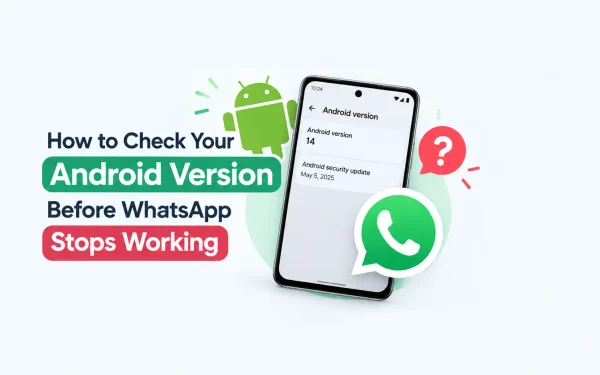
First Check Your Android Version
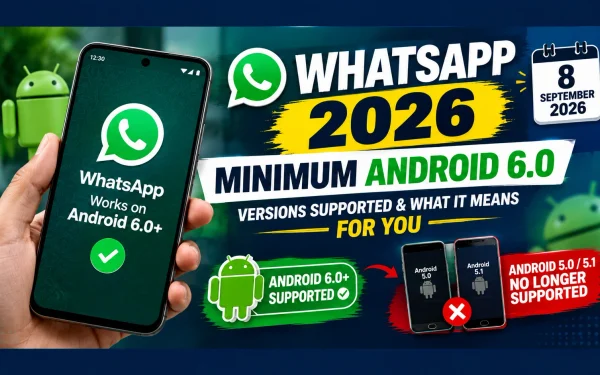
Before trying other troubleshooting methods, check whether your phone meets WhatsApp’s current Android requirement. If your device is running an unsupported version, the problem may be related to the end of Android support. See our guide to WhatsApp supported Android versions in 2026 for the latest compatibility information.
WhatsApp Android Support Ends: The Real Reason Behind This Issue
WhatsApp Android support ends for Android 5.0 and 5.1 as part of a routine but significant update to the app’s minimum operating system requirement, which has now moved up to Android 6.0. WhatsApp had been showing in-app warnings to affected users for weeks before this cutoff, but it’s easy to miss those notifications or dismiss them without registering what they actually meant.
This is fundamentally different from a typical bug or server outage — those usually resolve on their own within hours and affect users regardless of their device’s age. A permanent compatibility cutoff, on the other hand, affects only a specific slice of older devices and doesn’t go away with troubleshooting, no matter how thorough.
WhatsApp Issue Type: How to Tell Them Apart
| Issue Type | Affects | Fixable With Troubleshooting? |
|---|---|---|
| Android 5.0/5.1 Support Cutoff | Only Android 5.0 and 5.1 devices | No — requires OS update or new device |
| Temporary Server Outage | All users, regardless of device | Usually resolves on its own |
| App Glitch or Cache Issue | Individual users, any Android version | Yes — usually fixable |
| Storage or Update Issue | Individual users, any Android version | Yes — usually fixable |
WhatsApp Not Working on Android: Step One, Check Your OS Version
WhatsApp not working on Android should always start with confirming exactly which Android version your phone is running, since that single detail determines whether you’re dealing with the support cutoff or a separate, fixable issue entirely. Head to Settings, then About Phone, and look for the Android version listed there.
If your phone shows Android 5.0 or 5.1, you’ve found your answer — WhatsApp will not function on this device unless the operating system itself can be updated. If you’re running Android 6.0 or higher, the app should still work, and the problem you’re experiencing is likely one of the more common, fixable issues covered below.
If your device is running Android 5.0 or 5.1, the compatibility change may be the reason WhatsApp is no longer working properly. Read our detailed guide on WhatsApp Android 5.0 and 5.1 support to understand what changed and what affected users can do next.
WhatsApp Not Opening: Why the App Won’t Launch at All
WhatsApp not opening when you tap the icon is one of the more alarming symptoms, since it can feel like the app has vanished entirely. Beyond the Android version cutoff, this can also happen due to a corrupted cache, insufficient phone storage, or a pending app update that hasn’t installed correctly. Before assuming the worst, try force-closing the app completely and reopening it, since a simple hang during launch is often resolved this way.
If force-closing doesn’t help, check how much free storage your phone has. WhatsApp, like most messaging apps, needs a reasonable amount of free space to function properly, and a nearly full device can cause the app to fail silently on launch rather than showing a clear error message.
WhatsApp Stuck on Loading: What to Do When the Screen Won’t Move Past the Logo
WhatsApp stuck on loading at the green splash screen, without ever reaching your chat list, usually points to either a poor internet connection or a corrupted local cache rather than the Android version cutoff itself — though it’s still worth ruling that out first. Try switching between Wi-Fi and mobile data to see if a connectivity issue is the culprit, since WhatsApp needs to sync with its servers briefly during startup.
If switching networks doesn’t help, clearing the app’s cache — without clearing its data, which would remove your chats — is usually the next step. On most Android phones, this option sits under Settings > Apps > WhatsApp > Storage > Clear Cache, and it typically resolves loading issues without affecting your existing conversations.
WhatsApp Keeps Closing: Fixing Random Crashes on Android
WhatsApp keeps closing unexpectedly, even mid-conversation, most commonly points to a temporary software glitch, an outdated app version, or occasionally a conflict with another app running in the background. This kind of instability is usually unrelated to the Android support cutoff, since fully unsupported devices generally won’t let the app open at all rather than crashing intermittently after launch.
Updating WhatsApp to its latest available version through the Google Play Store is the first and most effective fix here, since crash-related bugs are frequently addressed in routine app updates. If updating doesn’t help, restarting your phone entirely — not just the app — often clears whatever background conflict is causing the instability.
WhatsApp Keeps Closing: Common Causes and Fixes
| Possible Cause | Recommended Fix |
|---|---|
| Outdated WhatsApp version | Update via Google Play Store |
| Too many background apps running | Close unused apps, restart phone |
| Corrupted app cache | Clear cache via phone settings |
| Low phone storage | Free up storage space |
| Android version below 6.0 | Update OS or switch devices |
WhatsApp Not Responding: What This Specific Error Message Means
WhatsApp not responding as a pop-up message, rather than the app simply failing to open, usually indicates the app has frozen mid-process rather than crashed outright. This is often triggered by a large media file being sent or received, a backup process running in the background, or the app struggling to keep up on an older, lower-powered device.
Waiting a few seconds usually allows the app to catch up on its own, but if the message persists, force-closing WhatsApp through your phone’s recent apps screen and reopening it is the most reliable next step. Repeated “not responding” errors on the same device, even after these steps, can sometimes point to a device nearing the lower end of what current app versions are optimised to run smoothly on.
What About Your Existing WhatsApp Chats?
If WhatsApp is no longer working on your old Android phone, you may also want to know whether your existing conversations can be recovered. Read our guide on recovering WhatsApp chats after Android 5 support ends to learn about backup and restore options.
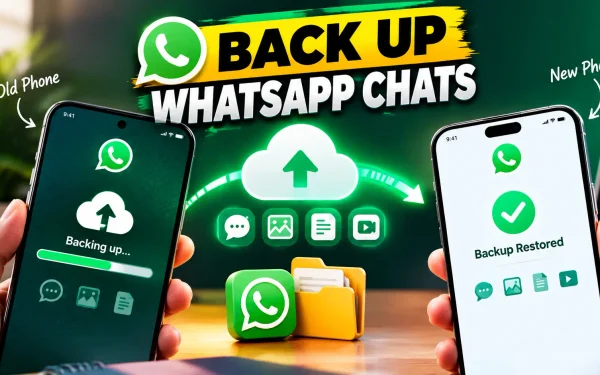
If you are planning to move to a new phone, it is also important to create a WhatsApp backup before making the switch. Follow our guide on how to back up WhatsApp chats before changing phones to prepare your chat history for transfer.
Restart WhatsApp: The Simple Fix That Solves More Than You’d Expect
Restart WhatsApp as a troubleshooting step sounds almost too basic to mention, but it genuinely resolves a surprising number of everyday glitches — frozen screens, delayed message delivery, notifications not coming through, and general sluggishness. A proper restart means fully force-closing the app through your phone’s app-switcher screen, not just minimising it by pressing the home button.
For a more thorough restart, some users also find it helpful to briefly enable and then disable Airplane Mode, which forces the app to fully reconnect to WhatsApp’s servers rather than relying on a potentially stale connection.
How to Restart WhatsApp on Android: A Step-by-Step Walkthrough
How to restart WhatsApp on Android is a straightforward process once you know exactly where to look in your phone’s settings. Here’s the complete sequence, from a simple force-close all the way up to a full reinstall if needed.
WhatsApp Restart and Troubleshooting: Step-by-Step Guide
| Step | Action |
|---|---|
| 1 | Open Recent Apps and swipe WhatsApp away to force-close it |
| 2 | Reopen WhatsApp and check if the issue persists |
| 3 | Go to Settings > Apps > WhatsApp > Storage > Clear Cache |
| 4 | Check for a pending WhatsApp update in the Google Play Store |
| 5 | Restart your phone completely, not just the app |
| 6 | Check your Android version under Settings > About Phone |
| 7 | If on Android 5.0/5.1, check for an OS update or consider a device upgrade |
| 8 | As a last resort, uninstall and reinstall WhatsApp (chats should be backed up first) |
WhatsApp Android 5: When Troubleshooting Won’t Help
WhatsApp Android 5 devices are the one clear exception where none of the steps above will restore functionality, no matter how carefully they’re followed. If your phone is confirmed to be running Android 5.0 or 5.1, the app has been intentionally blocked from running by WhatsApp itself, not affected by a bug or glitch that troubleshooting can resolve.
In this specific situation, your only real options are checking whether your phone manufacturer has released an Android 6.0 update for your model, or backing up your chats and moving to a newer device that meets the current minimum requirement. Continuing to force-close, clear cache, or reinstall the app on an Android 5.0 or 5.1 device won’t change the outcome, since the restriction is built into how the app checks compatibility before it even attempts to launch.
Frequently Asked Questions About WhatsApp Not Working
1. Why is WhatsApp not working today on my phone?
It could be a temporary server issue, a local app glitch, or — if you’re on Android 5.0 or 5.1 — the permanent support cutoff that took effect on September 8, 2026.
2. Why does my WhatsApp keep closing itself on Android?
This is usually caused by an outdated app version, low storage, background app conflicts, or a corrupted cache, and is generally unrelated to the Android version support cutoff.
3. How do I solve WhatsApp not responding?
Wait a few seconds to see if the app catches up, then force-close it through your recent apps screen and reopen it if the issue continues.
4. Why is WhatsApp not working on my Android phone specifically?
Check your Android version first. If it’s 5.0 or 5.1, the app is no longer supported on your device. If it’s 6.0 or higher, the issue is likely a fixable glitch.
5. How do I restart WhatsApp properly?
Open your phone’s recent apps screen, swipe WhatsApp away to fully close it, then reopen the app from your home screen or app drawer.
6. Why is my WhatsApp not opening at all?
This can happen due to low phone storage, a corrupted cache, or a pending update. Try force-closing the app, freeing up storage, and checking for updates.
7. Why is WhatsApp stuck on loading on my Android phone?
This is usually caused by a poor internet connection or a corrupted cache. Try switching networks first, then clear the app’s cache if the issue continues.
8. How do I restart WhatsApp on Android step by step?
Force-close the app via recent apps, clear its cache if needed, check for updates in the Play Store, and restart your phone if the problem persists.
9. Can I fix WhatsApp not working if my phone is on Android 5.0 or 5.1?
No, standard troubleshooting won’t work on these versions. You’ll need to update your phone’s OS to Android 6.0 or newer, or switch to a compatible device.
10. Will I lose my chats if WhatsApp stops working on my old phone?
Only if you haven’t backed them up. Back up your chats via Settings > Chats > Chat Backup before your device becomes fully unsupported.

3 Comments