
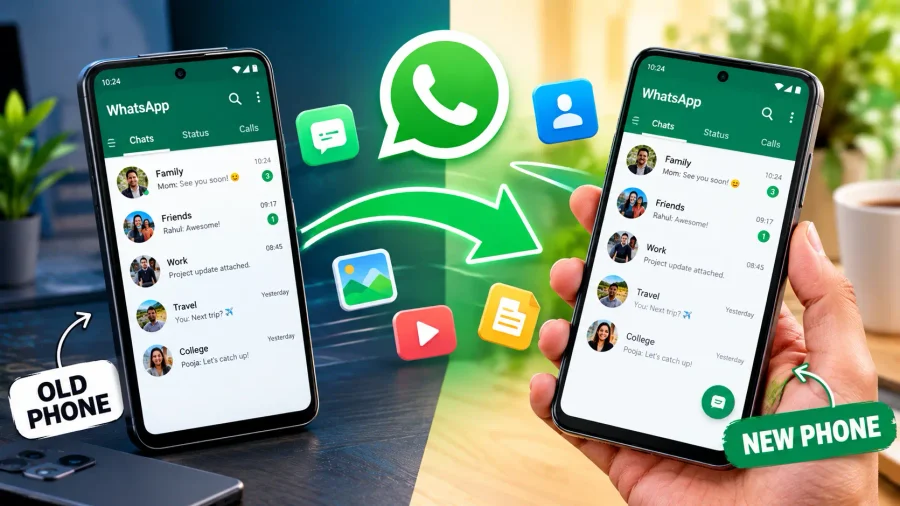

Transfer WhatsApp chats to a new Android phone sounds like a five-minute job, and it usually is, right up until the moment someone taps “Skip” on a restore prompt or erases the old phone a little too early. After that, years of messages, voice notes and family photos can become very hard, sometimes impossible, to get back. A few minutes of preparation is what separates a smooth upgrade from a genuinely painful one.
WhatsApp chat transfer between two Android phones can be done in three official ways: a direct QR code transfer between the two handsets, a Google Drive backup restored on the new phone, or a local backup file copied across by hand. Each suits a different situation, and this guide walks through all of them, plus the awkward cases people search for most: a different phone number, no backup at all, and moving from Android to iPhone.
Before You Start: A Quick Checklist
Move WhatsApp to new phone setups go wrong for boring reasons, almost never for technical ones. Run through this short list first and most of the common failures disappear.
Pre-Transfer Checklist
| Check | Why It Matters |
|---|---|
| Old phone still works and WhatsApp opens | The cleanest methods need the old phone running |
| New phone has a SIM that can receive the verification SMS or call | WhatsApp must verify your number on the new device |
| Both phones are charged and on Wi-Fi | Large chat histories take time and data |
| Latest WhatsApp installed on both phones | Older versions may not show the transfer option |
| You know which Google account holds your backup | Google Drive restore only works with the same account |
| You do not erase the old phone until you’ve confirmed everything arrived | Your last safety net |
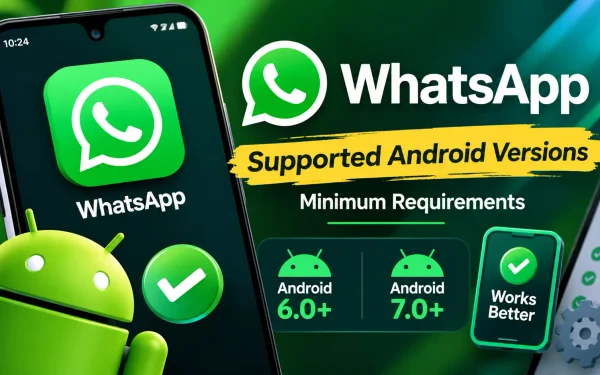
One more point that has become relevant recently: WhatsApp now needs Android 6.0 or newer. If your old phone is stuck on Android 5.0 or 5.1, the app no longer opens on it, which means the QR method won’t work and you’ll need to rely on a backup that already exists on Google Drive or on the phone itself.
How to Transfer WhatsApp Chats to a New Android Phone Using the QR Code Method
How to transfer WhatsApp chats to a new Android phone using a QR code is the quickest route when both phones are in your hands. The transfer happens directly between the two devices over a local connection, so nothing has to be uploaded to Google Drive and downloaded again. It’s also the best answer for anyone who doesn’t want their private chats sitting in a cloud account.
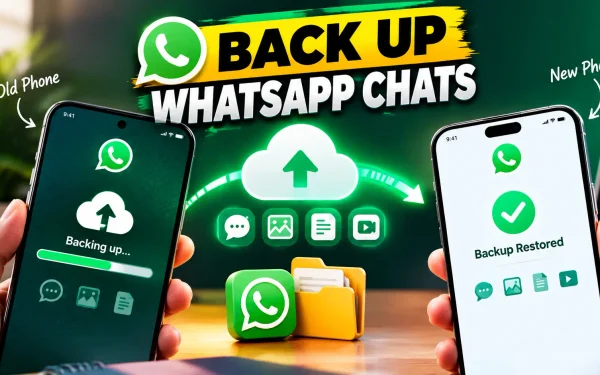
Before starting the transfer, make sure you have created a recent backup of your conversations on your old phone. Follow our guide on how to back up WhatsApp chats before changing phones to check your backup settings and prepare your chat history before moving to the new device.
Step-by-Step: Direct QR Code Transfer
| Step | Where | Action |
|---|---|---|
| 1 | New phone | Install WhatsApp and start setup with your existing phone number |
| 2 | New phone | Verify the number with the 6-digit code |
| 3 | New phone | When WhatsApp offers it, choose to transfer from your old device |
| 4 | New phone | A QR code appears on the screen |
| 5 | Old phone | Open WhatsApp, go to Settings > Chats > Transfer chats and tap Start |
| 6 | Old phone | Grant the permissions it asks for and scan the QR code on the new phone |
| 7 | Both phones | Keep both screens on until the progress bar finishes, then tap Done |
Keep both phones close together and plugged in during the transfer. Some items, such as call history and payment messages, may not carry over, and you might need to re-add certain sticker packs afterwards.
How to Scan QR Code to Transfer WhatsApp Chats: Troubleshooting
How to scan QR code to transfer WhatsApp chats is simple in theory and fiddly in practice, because the two phones need to find each other over a local wireless connection. If the scan fails or the transfer stalls, the cause is almost always one of a handful of things.
QR Transfer Problems and Fixes
| Problem | Likely Cause | Fix |
|---|---|---|
| The transfer option doesn’t appear | Different phone number or outdated app | Use the same number and update WhatsApp on both phones |
| QR code won’t scan | Camera focus, screen brightness, or glare | Raise the brightness on the new phone and hold both steady |
| Transfer stops partway | Wi-Fi or location permission turned off | Enable Wi-Fi and location, then retry |
| Transfer is very slow | Huge chat history with lots of media | Plug both phones in and give it time |
| Option never works | Phones on different operating systems | Use the Android to iPhone route instead, or a backup method |
Restore WhatsApp From Google Drive: The Classic Method
Restore WhatsApp from Google Drive is the most familiar route and still the most dependable when the old phone is lost, broken or already wiped. It works because your chats were saved to your Google account on a regular schedule, so the new phone can simply pull them down.
The sequence matters. First, on the old phone, open WhatsApp and go to Settings > Chats > Chat backup, then tap Back up now so the latest messages are included. Next, make sure the new phone is signed in to the same Google account. Install WhatsApp, verify your number, and when WhatsApp finds the backup, tap Restore. Wait for it to finish before doing anything else.
If you switched on end-to-end encrypted backup at some point, you’ll need the password or 64-digit key you set up then. Without it, the backup can’t be opened, and WhatsApp can’t reset it for you, so find that password before you retire the old phone.
How Do I Get All My Old WhatsApp Messages on My New Phone?
How do I get all my old WhatsApp messages on my new phone really comes down to making one good backup and restoring it at the right moment. The restore prompt appears only during the first setup of WhatsApp on the new device. If you tap Skip, the app starts with an empty history, and getting the old one back means uninstalling and reinstalling to see the prompt again.
To make sure everything arrives, back up on the old phone just before switching, include videos if you want them (they make the backup larger), use the same phone number and, for Google Drive, the same Google account. After restoring, give the app a few minutes to finish rebuilding your media, since photos and videos sometimes appear a little after the text messages do.
Transfer WhatsApp Chat From Android to iPhone
Transfer WhatsApp chat from Android to iPhone is the one case where the QR method between two phones won’t do the job, because it only works between phones running the same operating system. The official route is Apple’s Move to iOS app, and it can only be used while you’re setting up a brand-new or freshly reset iPhone.
On the iPhone’s setup screens, choose to transfer data from Android and follow the prompts. On the Android phone, install Move to iOS, enter the code shown on the iPhone, and when the list of data appears, select WhatsApp. WhatsApp will then ask you to confirm on the Android phone, and after the transfer you finish by signing in on the iPhone with the same phone number. Plan for a fairly long process if your history is big, and keep both phones plugged in and close together throughout.
WhatsApp Transfer Methods: Which One to Use
| Situation | Best Method | Needs Google Drive? | Same Number Needed? |
|---|---|---|---|
| Android to Android, both phones available | QR code direct transfer | No | Yes |
| Android to Android, old phone lost or wiped | Google Drive restore | Yes | Yes |
| Android to Android, avoiding the cloud | Local backup file copy | No | Yes |
| Android to iPhone | Move to iOS during iPhone setup | No | Yes |
| New phone and new number | Change number first, then any method above | Depends | Number changes first |
Can I Transfer WhatsApp Messages to a New Phone Without Backup?
Can I transfer WhatsApp messages to a new phone without backup has a reassuring answer as long as the old phone still works. The QR code method moves your chats directly, so no Google Drive or iCloud backup is needed. You do need both phones in hand, the same phone number and the same operating system on each.
If the old phone works but won’t run the QR method, there’s another fallback on Android. WhatsApp quietly creates a local backup file on the phone every night, usually kept in the WhatsApp folder under Databases, or on newer Android versions inside Android > media > com.whatsapp. You can copy that file to the new phone using a file manager or computer, place it in the matching folder, and WhatsApp will offer to restore it when you set up. If the old phone is lost and there was never a backup anywhere, the honest answer is that the messages can’t be recovered from WhatsApp, because they aren’t stored on its servers.
Before transferring your chats, confirm that your new phone meets WhatsApp’s current Android requirements. Our guide to WhatsApp supported Android versions in 2026 explains the minimum requirement and which Android versions remain compatible.
What You Can and Can’t Do Without a Backup
| Scenario | Possible? |
|---|---|
| Both phones available, same OS | Yes, via QR transfer |
| Old phone works, no cloud backup | Yes, via QR transfer or local backup file |
| Old phone lost, backup exists in Google Drive | Yes, restore on the new phone |
| Old phone lost, no backup anywhere | No, messages can’t be recovered from WhatsApp |
Can I Transfer My WhatsApp Chats to Another Phone With a Different Number?
Can I transfer my WhatsApp chats to another phone with a different number is a common worry, and the trick is to deal with the number before the phone. Backups and the QR transfer both expect the same number on the new phone, because your chat history is tied to the account. If you simply register the new number as a fresh account, you’ll start with an empty history.
The safe order is this. Put the new SIM in the new phone, or at least have the new number ready to receive a verification code. On the old phone, go to Settings > Account > Change number and follow the steps. That moves your chats, groups and settings to the new number on the same account. After that, back up or transfer as usual, and the new phone will recognise the account. Do the number change first while the old phone still works, then transfer, and never in the reverse order.
Common Mistakes That Cost People Their Chats
WhatsApp old messages new phone stories that end badly usually involve the same short list of slips. Most are easy to avoid once you know about them.
Mistakes to Avoid
| Mistake | What Happens | How to Avoid |
|---|---|---|
| Wiping the old phone too early | You lose your only copy | Wait until you’ve checked the new phone fully |
| Tapping Skip on the restore prompt | New phone starts empty | Reinstall WhatsApp and choose Restore |
| Using a different Google account | Backup isn’t found | Sign in with the account that holds the backup |
| Forgetting the encrypted backup password | Backup can’t be opened | Note the password or key before switching |
| Backing up over weak mobile data | Backup stalls or fails | Use stable Wi-Fi |
WhatsApp Not Working After Android Support Ends?
If WhatsApp stops opening on your old Android phone, first check whether the device meets the app’s minimum system requirements. Our guide on what to do if WhatsApp is not working after Android support ends explains how to distinguish a compatibility issue from a regular app problem.
Frequently Asked Questions
1. Can I transfer my WhatsApp chats to another phone with a different number?
Yes, but use the Change number feature first on the old phone (Settings > Account > Change number) so your chats and account move to the new number. After that, back up or transfer as normal. Registering the new number as a fresh account starts you with no history.
2. Can I transfer WhatsApp messages to a new phone without backup?
Yes, if the old phone still works. The QR code transfer moves your chats directly between two phones on the same operating system, with the same phone number, and no cloud backup is needed. If the old phone is lost and there was never a backup, the messages can’t be recovered.
3. How do I get all my old WhatsApp messages on my new phone?
Back up on the old phone right before switching, then install WhatsApp on the new phone, verify the same number and tap Restore when prompted. For Google Drive, use the same Google account. Don’t skip the restore prompt, and wait for the process to finish.
4. How to scan QR code to transfer WhatsApp chats?
On the new phone, install WhatsApp, verify your number and choose to transfer from the old device to display a QR code. On the old phone, open WhatsApp, go to Settings > Chats > Transfer chats > Start, grant permissions and scan the code. Keep both phones close and plugged in until it finishes.
5. Can I transfer WhatsApp chat from Android to iPhone?
Yes, using Apple’s Move to iOS app while setting up a new or freshly reset iPhone. Select WhatsApp in the list of data to move, then sign in on the iPhone with the same phone number to complete the transfer.
6. Is the QR code transfer safe?
It is an official WhatsApp feature that moves chats directly between your two phones over a local connection instead of through the cloud, so your messages don’t need to be uploaded to a backup account.
7. Do I need Google Drive to transfer WhatsApp chats between Android phones?
No. The direct QR transfer and the local backup file method both work without Google Drive, though a Google Drive backup is the easiest option if the old phone is no longer available.
8. Will my media, voice notes and documents transfer too?
Yes, they are included, though large histories can take a while. Some items such as call history and payment messages may not carry over, and a few sticker packs may need to be re-added.
9. What if I accidentally skipped the restore option?
Uninstall WhatsApp from the new phone, reinstall it, verify your number again and choose Restore when the prompt appears. This works only if the backup still exists and you haven’t backed up an empty history over it.
10. Can I transfer chats if my old phone is on Android 5.0 or 5.1?
WhatsApp no longer runs on those versions, so the QR transfer won’t work. Use an existing Google Drive backup, or copy the local backup file from the old phone, then restore it on the new one.
11. Is it possible to move WhatsApp chats from iPhone to Android?
Yes, WhatsApp supports moving chats from iPhone to Android using a cable and the Move chats to Android option, as long as you use the same phone number and set it up on a new or reset Android phone.

2 Comments