
Check Android version on your phone before you run into a compatibility problem you didn’t see coming — that’s genuinely the single most useful habit any Android user can build right now. WhatsApp recently raised its minimum system requirement, and if your phone happens to be running an older version of Android without you realising it, you could lose access to the app entirely without any warning that actually registers in time.
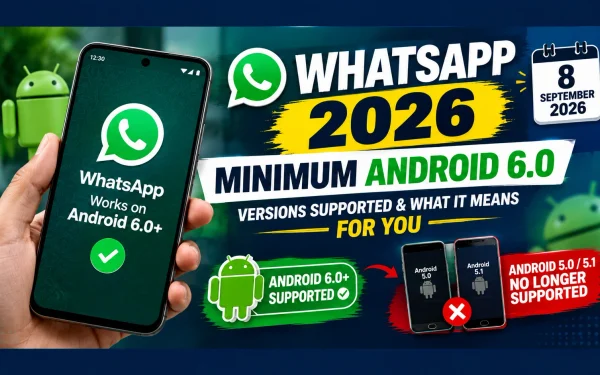
WhatsApp stops working on a specific group of older Android devices as of September 8, 2026, when the app officially ended support for Android 5.0 and Android 5.1. Knowing your exact Android version takes less than a minute to check, and it’s the single most useful piece of information you can have before troubleshooting anything else related to WhatsApp on your phone.
Check Android Version: The First Thing You Should Do
Check Android version by opening your phone’s Settings app and scrolling down to “About Phone” or “About Device,” depending on your phone’s manufacturer and interface. Inside that menu, look for “Android Version” or “Software Information,” where the exact version number will be clearly listed.
If you see Android 5.0 or 5.1, your phone falls into the category that WhatsApp no longer supports. If you see Android 6.0 or any higher version, your phone remains fully compatible, and any WhatsApp issues you’re experiencing are almost certainly unrelated to this specific compatibility cutoff.
How to Check Your Android Version: Step-by-Step
| Step | Action |
|---|---|
| 1 | Open the Settings app on your phone |
| 2 | Scroll down and tap “About Phone” or “About Device” |
| 3 | Look for “Android Version” or “Software Information” |
| 4 | Note the exact version number displayed |
| 5 | Compare it against WhatsApp’s current minimum requirement (Android 6.0) |
WhatsApp Stops Working: Why This Is Happening Now
WhatsApp stops working on unsupported devices not because of a bug, but because of a deliberate decision by the company to raise its minimum operating system requirement. According to WhatsApp, older operating systems increasingly lack the security patches and technical capabilities needed to support newer features currently in development, including notification bubbles and floating chat icons.
This cutoff had been signalled in advance through in-app notifications shown to affected users, but it’s easy to overlook these warnings if you’re not actively checking your phone’s settings menu on a regular basis.
If you discover that your phone is running Android 5 or another unsupported version, you may want to move your WhatsApp account and existing conversations to a supported device. Learn more about recovering WhatsApp chats after Android 5 support ends in our detailed guide.
WhatsApp Android Requirement: Before and After
| Detail | Before September 8, 2026 | From September 8, 2026 Onward |
|---|---|---|
| Minimum Android Version | Android 5.0 | Android 6.0 |
| Affected Versions | None | Android 5.0 and 5.1 |
| Apps Affected | WhatsApp Messenger, WhatsApp Business | WhatsApp Messenger, WhatsApp Business |
Why WhatsApp Not Working Today
Why WhatsApp not working today is a question with several possible answers, and the Android version cutoff is just one of them. It could also be a temporary server-side outage affecting many users at once, a local glitch tied specifically to your device, or a pending app update that hasn’t installed properly. The fastest way to narrow this down is to first confirm your Android version, and if that checks out fine, look into more common day-to-day causes like storage space, cache issues, or your internet connection.
Is Your Android Version Supported by WhatsApp?
Once you find your Android version, the next step is to compare it with WhatsApp’s current minimum requirement. This will help you determine whether your phone can continue using WhatsApp or whether you need to consider an update or another supported device. Check our guide to WhatsApp supported Android versions in 2026 for the latest compatibility details.
How to Solve WhatsApp Not Responding
How to solve WhatsApp not responding starts with recognising that this specific error usually means the app has frozen mid-task rather than crashed outright. This can happen when a large file is being sent or received, or when a chat backup is quietly running in the background. Waiting a few seconds often allows the app to catch up on its own; if it doesn’t, force-closing WhatsApp through your phone’s recent apps screen and reopening it is the most reliable next step.
WhatsApp Not Working on Android
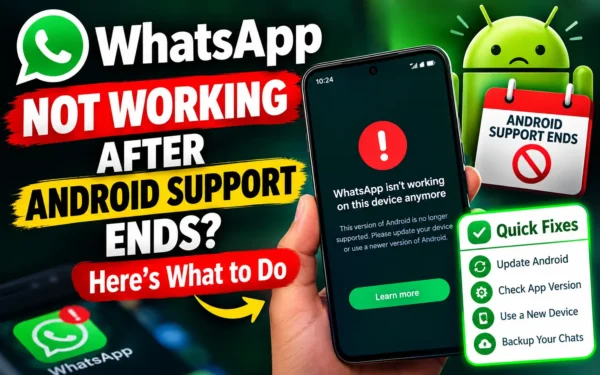
WhatsApp not working on Android issues can stem from a wide range of causes, but they generally fall into two categories: a device-wide compatibility issue (like the Android 5.0/5.1 cutoff) or a smaller, fixable glitch affecting just your installation of the app. Once you’ve confirmed your Android version is 6.0 or higher, most remaining issues can usually be resolved through basic troubleshooting steps like clearing cache, updating the app, or restarting your phone.
WhatsApp Not Working: Quick Diagnosis Table
| Symptom | Likely Cause | Fixable? |
|---|---|---|
| App won’t open at all, phone on Android 5.0/5.1 | Permanent support cutoff | No — requires OS update or new device |
| App won’t open, phone on Android 6.0+ | Storage, cache, or update issue | Yes |
| App opens but freezes | Background process or large file | Yes — wait or force-close |
| App crashes repeatedly | Outdated app version or low storage | Yes — update or free up space |
Why Does My WhatsApp Keep Closing Itself on Android
Why does my WhatsApp keep closing itself on Android is a common frustration, and it’s usually unrelated to the Android version cutoff, since fully unsupported devices generally won’t let the app open in the first place rather than crashing intermittently after launch. More often, this points to an outdated app version, insufficient phone storage, or a conflict with another app running heavily in the background.
Updating WhatsApp through the Google Play Store is the first fix worth trying, since crash-related bugs are frequently addressed in routine updates. Restarting your phone entirely, rather than just the app, often resolves whatever background conflict is causing the repeated closures.
How to Solve WhatsApp Not Responding on Android
How to solve WhatsApp not responding on Android specifically may require a slightly more thorough approach than on other platforms, given how much Android device hardware varies across manufacturers and price points. Beyond force-closing the app, clearing WhatsApp’s cache through Settings > Apps > WhatsApp > Storage > Clear Cache often resolves persistent unresponsiveness without deleting your chat history, since cache and data are stored separately.
If clearing cache doesn’t help, checking your phone’s available storage is the next logical step, since Android devices running low on free space often show app slowdowns and freezing before any other visible symptoms appear.
How to Restart WhatsApp
How to restart WhatsApp properly means more than just minimising the app by pressing your home button. A genuine restart requires opening your phone’s recent apps or app-switcher screen and swiping WhatsApp away completely, fully closing every background process tied to the app before reopening it fresh.
WhatsApp Restart: Step-by-Step Guide
| Step | Action |
|---|---|
| 1 | Open your phone’s Recent Apps screen |
| 2 | Swipe WhatsApp away to fully close it |
| 3 | Wait a few seconds |
| 4 | Reopen WhatsApp from your home screen or app drawer |
| 5 | If issues persist, restart your phone completely |
Why My WhatsApp Is Not Opening
Why my WhatsApp is not opening when tapped is one of the more alarming symptoms to run into, since it can feel like the app has stopped existing on your phone entirely. Beyond the Android version cutoff, this is commonly caused by insufficient storage space, a corrupted app cache, or a partially installed update that never completed properly.
Try force-closing the app first, then check your available storage under Settings > Storage. If storage looks fine, checking for a pending WhatsApp update in the Google Play Store is the next step worth trying before assuming anything more serious is wrong.
Why Is WhatsApp Not Working on My Phone
Why is WhatsApp not working on my phone is often the exact question people search after trying a couple of basic fixes without success, and at this point, it’s worth going back to the very first step in this guide — checking your Android version properly. A surprising number of “mystery” WhatsApp issues trace back to this one overlooked detail, especially on older phones that haven’t received a manual software update in years.
If your Android version is confirmed to be 6.0 or higher and you’re still facing issues after trying the fixes above, it may be worth checking WhatsApp’s official help center for any known, temporary service issues affecting a broader group of users rather than just your specific device.
Frequently Asked Questions About Checking Your Android Version and WhatsApp Issues
1. How do I check my Android version before WhatsApp stops working?
Go to Settings > About Phone > Android Version to see your exact Android version and compare it against WhatsApp’s minimum requirement of Android 6.0.
2. What Android version does WhatsApp require now?
WhatsApp now requires Android 6.0 or newer, after ending support for Android 5.0 and 5.1 on September 8, 2026.
3. Why is WhatsApp not working today on my phone?
It could be due to the Android version cutoff, a temporary server outage, a local app glitch, or a pending update, depending on your specific device.
4. How do I solve WhatsApp not responding?
Wait a few seconds to let the app catch up, then force-close it through your recent apps screen and reopen it if the issue continues.
5. Why does my WhatsApp keep closing itself on Android?
This is usually caused by an outdated app version, low storage, or background app conflicts, rather than the Android version support cutoff.
6. How do I restart WhatsApp properly?
Open your phone’s recent apps screen, swipe WhatsApp away to fully close it, then reopen it from your home screen after a few seconds.
7. Why is my WhatsApp not opening at all?
This can happen due to low storage, a corrupted cache, or a pending update. Try force-closing the app, freeing up storage, and checking for updates.
8. Why is WhatsApp not working on my phone specifically?
Start by checking your Android version. If it’s 6.0 or higher, the issue is likely a fixable glitch rather than a compatibility problem.
9. Can I still use WhatsApp on Android 5.0 or 5.1?
No, WhatsApp officially stopped supporting these versions on September 8, 2026. You’ll need to update to Android 6.0 or switch to a newer device.
10. Will checking my Android version fix WhatsApp issues on its own?
No, but it tells you whether your issue is a permanent compatibility problem or a fixable glitch, which determines which troubleshooting steps are actually worth trying.