
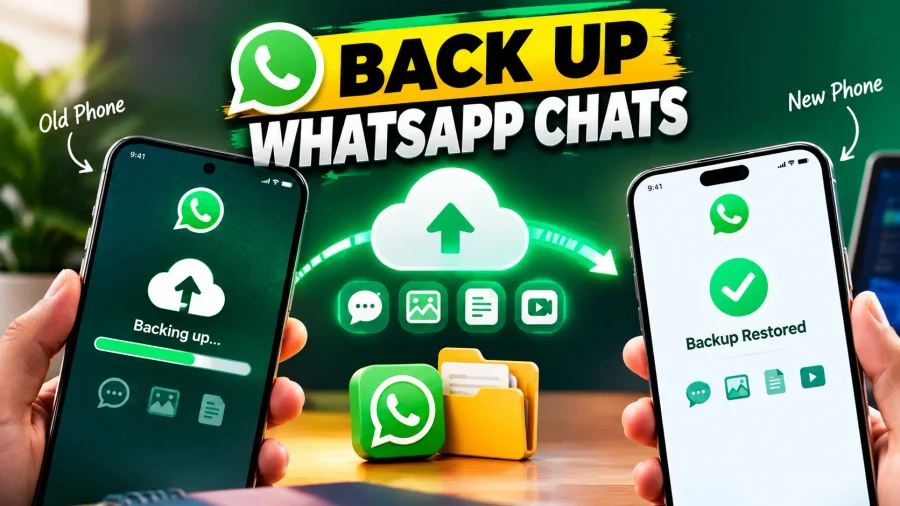

Back up WhatsApp chats before you switch devices, and you’ll save yourself from what’s genuinely one of the most common — and most avoidable — regrets people run into during a phone upgrade. Years of conversations, shared photos, voice notes, and group chats can disappear in seconds if you skip this one step, and unlike most app data, WhatsApp chat history isn’t something you can simply sign back in and retrieve automatically.
WhatsApp backup restore functionality is actually built right into the app, so getting this right doesn’t require any third-party tools or complicated workarounds — just knowing the correct sequence of steps and doing them in the right order, before you factory reset your old phone or hand it off. Here’s a complete, practical walkthrough covering everything from setting up your first backup to recovering deleted chats and understanding what’s genuinely possible versus what isn’t.
WhatsApp Backup Before Changing Phones: The Golden Rule
WhatsApp backup before changing phones comes down to one critical rule: always back up before you do anything else to your old device. Whether you’re switching from Android to Android, iPhone to iPhone, or even between operating systems, WhatsApp’s chat history isn’t stored on WhatsApp’s own servers by default — it lives either locally on your phone or in a linked cloud account, which means the backup step has to happen while your old phone is still fully functional.
This is especially important if you are moving away from an older Android phone that no longer supports WhatsApp. If your device is running Android 5.0 or 5.1, see our guide on recovering WhatsApp chats after Android 5 support ends for more information about local and Google Drive backup options.
WhatsApp Backup: Quick Reference by Scenario
| Scenario | What You Need |
|---|---|
| Android to Android | Google Drive backup (or local backup + file transfer) |
| iPhone to iPhone | iCloud backup |
| Android to iPhone / iPhone to Android | WhatsApp’s official Move to iOS / Move to Android tool |
| Old phone still accessible | Any backup method works |
| Old phone lost or broken | Only a previously completed cloud backup can help |
Backup WhatsApp Messages to New Phone: Step-by-Step Process
Backup WhatsApp messages to new phone transfers happen in two clear stages — first backing up on your old device, then restoring on your new one. Getting the order right matters: restoring only works correctly if it happens during WhatsApp’s initial setup on the new phone, before you start a fresh chat history there.
How to Back Up and Transfer WhatsApp Chats to a New Phone
| Step | Action |
|---|---|
| 1 | On your old phone, open WhatsApp > Settings > Chats > Chat Backup |
| 2 | Tap “Back Up Now” and ensure it completes fully before switching phones |
| 3 | Confirm the backup account (Google Drive for Android, iCloud for iPhone) |
| 4 | Install WhatsApp on your new phone |
| 5 | Verify your phone number during setup |
| 6 | When prompted, tap “Restore” to pull your chat history from the backup |
| 7 | Wait for the restore to complete before sending or receiving any new messages |
WhatsApp Backup Settings: Getting the Configuration Right
WhatsApp backup settings are worth reviewing properly rather than just accepting the defaults, since a few small configuration choices can make a real difference in how complete and reliable your backup actually is. Within Settings > Chats > Chat Backup, you can control how frequently automatic backups run — daily, weekly, or monthly — and whether videos are included, since video files can significantly increase backup size and, for Android users on Google Drive, may count against your storage quota depending on your account settings.
For anyone preparing specifically for a phone change, it’s worth manually triggering a fresh backup right before the switch, rather than relying on whatever automatic schedule you’ve set, since you want the absolute latest version of your chats captured before moving to a new device.
Key WhatsApp Backup Settings to Check
| Setting | What It Controls |
|---|---|
| Backup Frequency | Daily, weekly, or monthly automatic backups |
| Include Videos | Whether video files are included in the backup |
| Backup Over Wi-Fi Only | Prevents backups from using mobile data |
| Backup Account | The Google Drive or iCloud account linked to your backup |
What If WhatsApp Stops Working on Your Old Phone?
If WhatsApp has already stopped working on your old Android device, backing up may not be possible through the normal in-app process. In that situation, our guide on what to do if WhatsApp is not working after Android support ends covers the troubleshooting and recovery options you can check.
Restore WhatsApp Backup from Google Drive: The Android Process
Restore WhatsApp backup from Google Drive works specifically for Android-to-Android transfers, and it’s the most common path most Android users will follow. Before installing WhatsApp on your new Android phone, make sure you’re signed into the exact same Google account that held your previous backup, since Google Drive backups are tied to that specific account rather than to your phone number alone.
Once WhatsApp is installed and you verify your phone number on the new device, the app will automatically detect an available backup linked to that Google account and prompt you to restore it. It’s important to tap “Restore” at this exact point in setup — if you accidentally skip it, recovering the same backup later becomes considerably more complicated.
If you are changing phones because your current device is no longer compatible with WhatsApp, you should also check whether your Android version is still supported. Our guide on WhatsApp ending support for older Android phones explains which devices are affected and what users should do before switching to a new phone.
How to Backup WhatsApp Chat in Laptop Without Phone: What’s Actually Possible
How to backup WhatsApp chat in laptop without phone access is a genuinely common point of confusion, so it’s worth being direct about what is and isn’t possible here. WhatsApp Web and WhatsApp Desktop both require an active connection to your phone’s WhatsApp account to function — they mirror your phone’s chats in real time rather than storing an independent backup on your laptop. This means you cannot create a fresh WhatsApp backup purely from a laptop with no phone involved at all.
That said, if WhatsApp Desktop is already installed and was previously linked to your account, some conversation history may be cached locally on the computer, though this isn’t a reliable or complete backup method and shouldn’t be depended on as your primary backup strategy. The phone-based backup methods covered throughout this article remain the only fully reliable approach.
Check Your New Phone Before Transferring WhatsApp
Before transferring your chats, make sure the new device meets WhatsApp’s current Android requirements. You can check our guide to WhatsApp supported Android versions in 2026 to see the current minimum Android version and compatibility information.
How to Backup WhatsApp Deleted Chat: What You Need to Know
How to backup WhatsApp deleted chat conversations depends entirely on timing. If a chat was deleted after your most recent backup was created, that chat will still exist within the backup file itself, even though it no longer appears in the app on your phone. Restoring from that backup on a new device would bring the deleted chat back, since the backup captures a snapshot of your chats at the moment it was created.
However, if you delete a chat and then create a new backup afterward, that new backup will no longer contain the deleted conversation, since it reflects your phone’s current state at backup time. This is exactly why timing matters so much — a backup taken before deletion can save you, while one taken after cannot.
Recovering Deleted Chats: Timing Matters
| Scenario | Recoverable? |
|---|---|
| Chat deleted, backup taken before deletion | Yes, if you restore from that earlier backup |
| Chat deleted, then a new backup created afterward | No, the deletion is now reflected in the backup |
| Chat deleted with no backup ever taken | No, generally unrecoverable |
Recover WhatsApp Chat History: Options When You Don’t Have a Backup
Recover WhatsApp chat history without any backup at all is genuinely difficult, and in most cases, not possible through official means. WhatsApp doesn’t store your chat content on its own servers once messages are delivered, specifically because of its end-to-end encryption design — this is a privacy feature, not an oversight, but it does mean there’s no “WhatsApp support” option to retrieve chats that were never backed up anywhere.
If you’re in this situation, your best remaining options are checking whether an old local backup file still exists on your previous phone’s internal storage (even if you never manually triggered one, WhatsApp creates daily local backups by default), or asking chat participants on the other end if they still have the conversation on their own device, since they’d have an independent copy of the same exchange.
Frequently Asked Questions About WhatsApp Chat Backup and Restore
1. How can I see my backup chats on WhatsApp?
You can’t directly “view” a backup file without restoring it — the backup only becomes visible as actual chats again once you restore it during WhatsApp setup on a device.
2. How to recover a WhatsApp chat history?
Reinstall WhatsApp on your device, verify your number, and tap “Restore” when prompted if a backup linked to your Google Drive or iCloud account is detected.
3. Can we recover 2-year-old WhatsApp messages?
Only if a backup containing those messages still exists in your linked Google Drive or iCloud account and hasn’t been overwritten by more recent backups.
4. How to recover a WhatsApp chat without backup?
This is very difficult without an existing backup; your main options are checking for an old local backup file on your previous device or asking the other chat participant if they still have a copy.
5. How to recover old chat history?
The only reliable method is restoring from a previously created WhatsApp backup, either local or cloud-based, during app setup.
6. How do I restore a backup of WhatsApp chats?
Install WhatsApp, verify your phone number, and tap “Restore” when the app detects an available backup linked to your account.
7. How do I restore an old WhatsApp backup or chat after I have skipped restoring?
This is genuinely tricky once skipped — you’ll generally need to uninstall WhatsApp completely, clear its local data, and reinstall it, being careful to tap “Restore” this time rather than skipping again.
8. Can I see the WhatsApp chat history of any number online for free?
No, this isn’t possible and any website or service claiming to offer this is not legitimate. WhatsApp uses end-to-end encryption, meaning chat content cannot be accessed by anyone outside the conversation, including WhatsApp itself — treat such claims as scams.
9. Can I recover permanently deleted WhatsApp messages?
Only if a backup exists from before the messages were deleted. Without a prior backup, permanently deleted messages generally cannot be recovered.
10. Do I need to be connected to Wi-Fi to restore a WhatsApp backup?
It’s strongly recommended, especially for larger backups with media files, since restoring over mobile data can be slow and may use significant data depending on your plan.



2 Comments